
Miami Cruise / Apps / Brave
Brave
Miami Cruise colours for Brave tabs, toolbar and address bar.
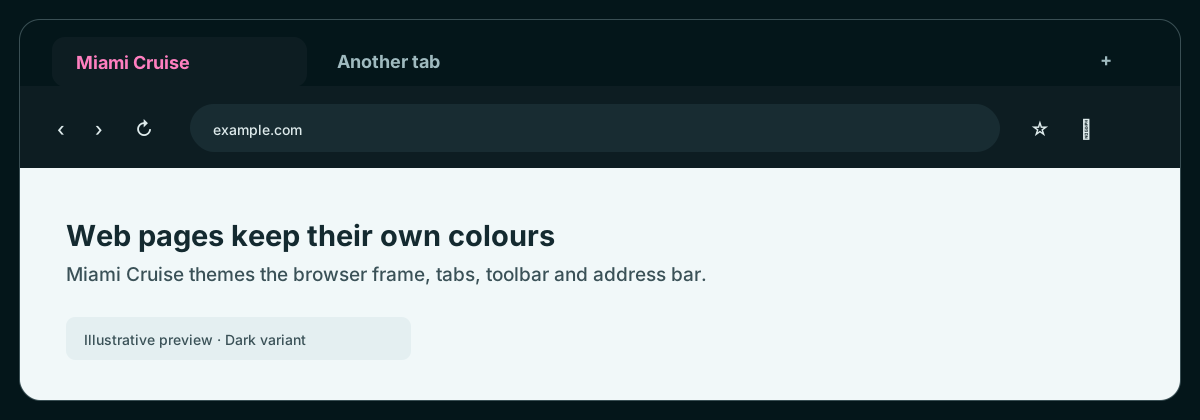
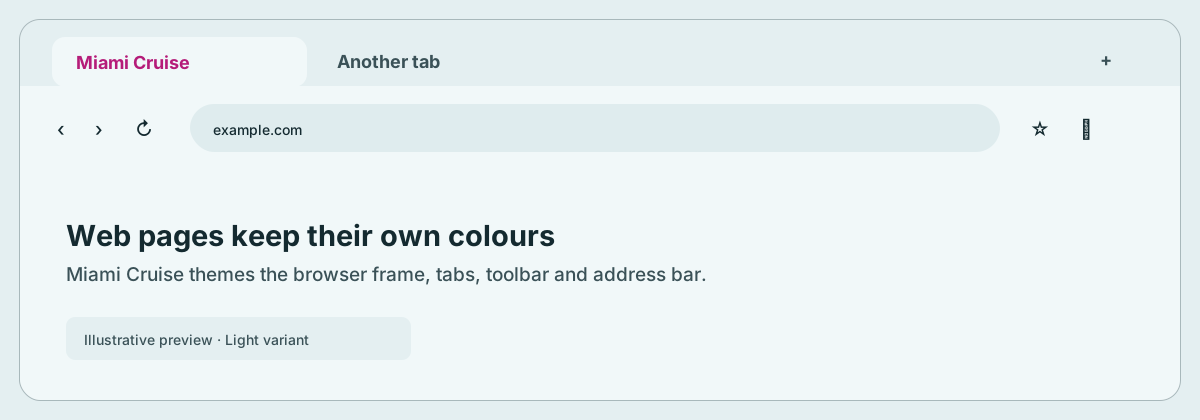
Install
Download
Choose Dark or Light and download that ZIP from this page.
Each ZIP contains a native Chromium theme manifest and the MIT licence. There are no scripts, extension permissions or web-page modifications. Keep the extracted folder after installing it.
Extract your chosen ZIP
Extract the dark or light ZIP to a permanent folder. Open the extracted folder and check that
manifest.jsonis directly inside it. Do not select the ZIP itself or the parent folder.Load the theme in Brave
Open
brave://extensions, enable Developer mode, choose Load unpacked, and select the folder containingmanifest.json. The browser chrome should update immediately. This local-install flow is for desktop Brave.Brave may show a developer-mode warning for locally loaded themes. The ZIP contains only a colour manifest and a licence file; it does not request permissions or run code.
Switch or remove
To change between dark and light, load the other extracted folder through
brave://extensions. Only one browser theme can be active at a time; switching is manual. To remove Miami Cruise, openbrave://extensionsand remove its theme, or reset the theme inbrave://settings/appearance.This colours Brave's browser chrome, not websites. Brave's New Tab background and some built-in UI surfaces have their own controls and may not follow these theme colours. The theme does not automatically follow your OS dark/light setting.
Install with an agent
Paste this prompt into an agent with web access and access to the machine where your apps run. No cloning, building or manual file downloads needed.
Help me install Miami Cruise. Read
https://raw.githubusercontent.com/lanjelin/miami-cruise/main/INSTALL.md
and follow its linked playbooks. Inspect and propose installation for Brave only; ask which variant I want.
Download the selected files yourself from the project website or a pinned GitHub revision. Propose exact changes and wait for my approval before making changes. Include private backups and conflict-aware restoration instructions and scripts before applying changes.The agent inspects first and asks for approval. If it cannot access your machine, it can provide tailored commands instead. Read the installation and restoration guide.